
Computer Storage
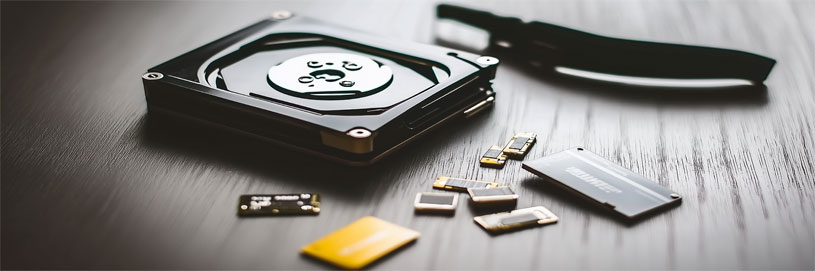
Computer storage is the quiet backbone of your setup, keeping everything from family photos to work files safe and close to hand. From hard drives and SSDs to USB flash drives, memory cards and memory card readers, it is about choosing the right mix of capacity, speed and portability.
Computer storage: the space, speed and peace of mind behind every file
Picture this: your laptop boots without a fuss, your photos are backed up safely, and your work files open when you need them. Storage is one of those quiet essentials that shapes everything you do, from saving projects to moving folders between devices, and it is also where the memories live, from family videos to a favourite holiday album. Read More...
If you are choosing storage today, start with what you want most: speed (for a snappier computer), capacity (for big libraries and backups), or portability (for work on the move). On this page you can browse three practical routes into storage. Start with Hard drives and SSDs for internal upgrades and external hard drive backups. Move to Memory cards and USB flash drives for cameras, phones and everyday file transfers. Choose Memory card readers when you want faster imports and fewer bottlenecks.
Hard drives and SSDs: internal upgrades, external backups, and the right fit
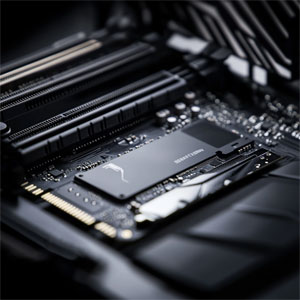
Hard drives and SSDs are where your operating system, games, photos and projects actually live. If your computer feels sluggish, switching the main drive to an SSD can make everyday tasks feel noticeably sharper, especially for boot times and app loading. The biggest decision is usually NVMe vs SATA. A NVMe SSD (often an M.2 SSD) slots into many modern PCs and is built for higher performance, while a SATA SSD is a widely compatible option that still feels quick compared with older hard drives.
Search terms like 2.5 inch SSD, M.2 SSD and PCIe 4.0 NVMe SSD are mostly about fit. A 2.5 inch SSD suits many older laptops and desktops, and an M.2 PCIe NVMe drive points to the faster internal route when your system supports it. If you are unsure, checking your motherboard model or laptop manual is the calmest way to avoid buying the wrong format.
For backups and big libraries, external storage is the everyday workhorse. A portable hard drive is often chosen when you want lots of capacity for the money, while an external SSD or portable SSD suits faster transfers and travel, especially if you move large folders regularly. Sizes like 1TB, 2TB and 4TB are common starting points, but the best choice is the one that fits your real life.
Before you check out, confirm whether you want USB-A or USB-C for external drives, and if you are upgrading internally, confirm you have a free M.2 slot or SATA port, plus the physical space for 2.5 inch or 3.5 inch drives. Those small checks stop the classic “it arrived, but it doesn’t fit” disappointment.
Memory cards and USB flash drives: everyday carry that keeps up
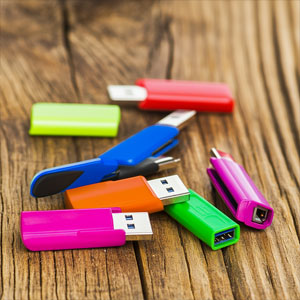
If you want grab-and-go storage, memory cards and USB flash drives are the small heroes of the category. A USB stick, also called a USB memory stick, is ideal for moving documents between computers, sharing files, or keeping a portable copy of essentials. For newer laptops and tablets, a USB-C flash drive can be a tidy solution because it avoids adapters, and many shoppers look for a USB 3.2 flash drive when they want quicker transfers than older USB 2.0 sticks.
If you are buying by capacity, a 128GB USB stick suits everyday documents, while a 256GB USB stick can be handy for larger media folders. If you carry sensitive work, an encrypted USB stick can add a helpful layer of protection, simply because it reduces the risk if the drive goes missing. It also helps to check the connector style up front, because some drives are USB-A only, while others offer USB-C, dual connectors, or low-profile designs for leaving plugged into a laptop.
For cameras, drones, handheld consoles and action cams, SD cards and microSD*cards are usually the simplest upgrade you can make. You will see formats like SDXC and microSDXC for higher capacities, plus speed markings that matter when you shoot video. If you record 4K, look for UHS-I support and a V30 rating as a sensible baseline, then step up to UHS-II if your device supports it and you need faster sustained writes.
The key is that the device has to support the faster standard too, otherwise the card will run at the slower speed your device supports. If you are unsure, your camera, drone or console manual will usually list the recommended card type, which is a far more reliable guide than guessing from the packaging.
Memory card readers: faster imports, the right port, and fewer headaches
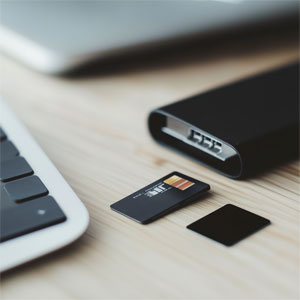
A good card reader is the difference between “that was quick” and watching a progress bar crawl. If you regularly move photos and video to a laptop, an SD card reader or microSD card reader can save time every week, particularly when your computer has no built-in slot. The key choice is usually the connector: a USB-C card reader suits modern laptops with limited ports, while a USB-A option is still useful for desktops and older machines.
If you use faster cards, a UHS-II card reader helps you take advantage of them, and a multi card reader is handy if you swap between SD and microSD. A compact single-slot reader can be perfect for travel, while a desk setup might suit something sturdier that is easy to plug and unplug without losing it.
A simple backup habit: keep copies you can reach
Storage is not only about capacity, it is about confidence. A straightforward approach many people follow is the 3-2-1 backup idea: keep three copies of important data, on two different types of storage, with one copy kept off-site. In everyday terms, that might look like your files on your computer, a copy on an external drive, and a copy in cloud storage.
Even if you keep it simpler, one extra backup drive can make a huge difference. Back up the folders you would truly miss, such as photos, work projects and important documents, and set a reminder to update it regularly. The best backup plan is the one you will actually stick with, because consistency beats complexity every time.
Explore more in Computing: upgrades that fit your setup
If you are upgrading internal storage, Computer Components is a helpful next step for motherboard and slot compatibility. If you are replacing or upgrading a laptop or desktop, Computers can help you shop machines with the storage capacity and ports you need from day one. For a wider browse across monitors, printers, peripherals and everything that completes a desk, Computing pulls it all together in one place.