
Computer Monitors
- Relevance
- Price: Low - High
- Price: High - Low
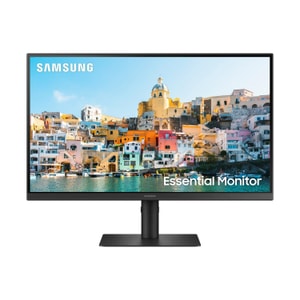
Screen size: 27 Inch • Resolution: 1920 x 1080 • Refresh Rate: 270 Hz
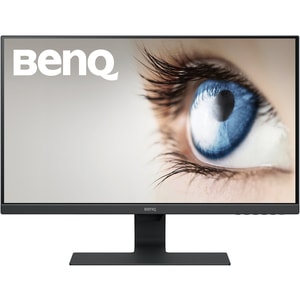
Screen size: 27 inch • Resolution: 1920 x 1080 • Refresh Rate: 60 Hz
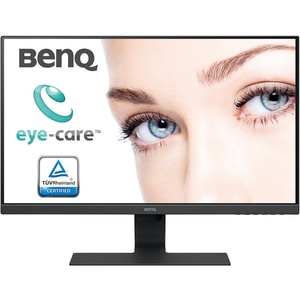
Screen size: 27 inch • Resolution: 1920 x 1080 • Refresh Rate: 60 Hz
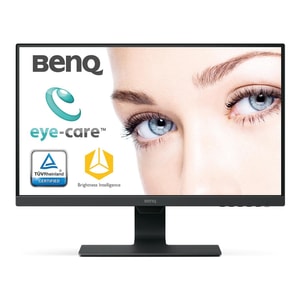
Screen size: 23.8 inch • Resolution: 1920 x 1080 • Refresh Rate: 60 Hz
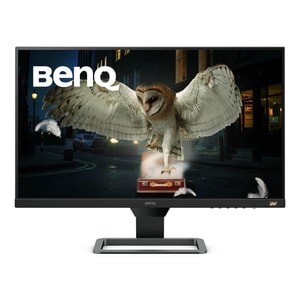
Screen size: 27 inch • Resolution: 1920 x 1080 • Refresh Rate: 75 Hz
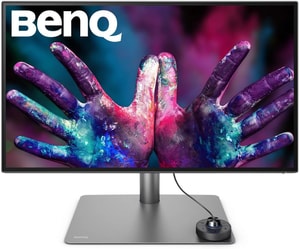
Screen size: 27 inch • Resolution: 3840 x 2160 • Refresh Rate: 60 Hz
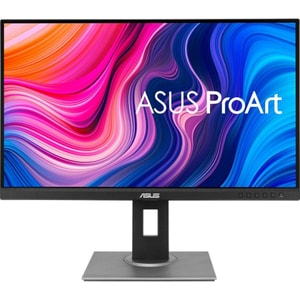
Screen size: 27 inch • Resolution: 2560 x 1440 • Refresh Rate: 75 Hz
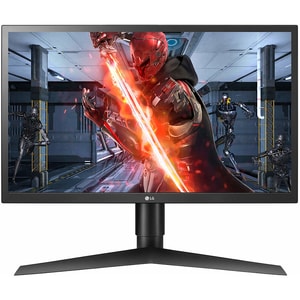
Screen size: 23.5 inch • Resolution: 1920 x 1080 • Refresh Rate: 144 Hz
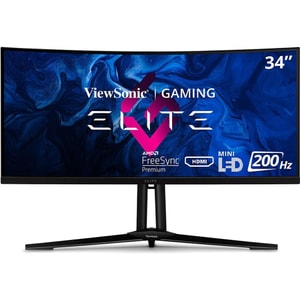
Screen size: 34 inch • Resolution: 3440 x 1440 • Refresh Rate: 200 Hz (OC)
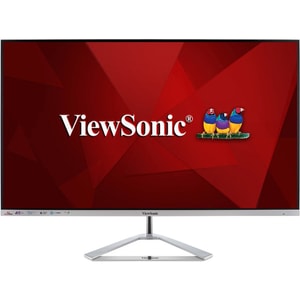
Screen size: 32 inch • Resolution: 3840 x 2160 • Refresh Rate: 60 Hz
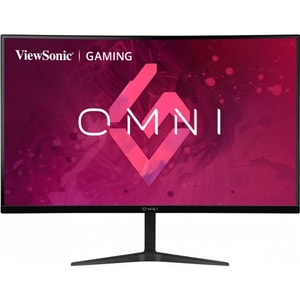
Screen size: 27 inch • Resolution: 2560 x 1440 • Refresh Rate: 165 Hz
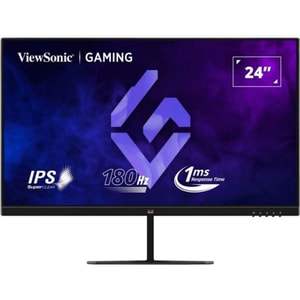
Screen size: 23.8 inch • Resolution: 1920 x 1080 • Refresh Rate: 180 Hz
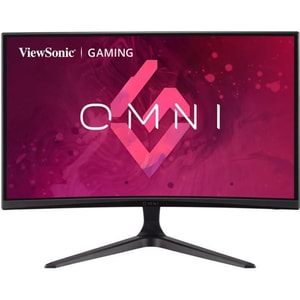
Screen size: 24 inch • Resolution: 1920 x 1080 • Refresh Rate: 165 Hz
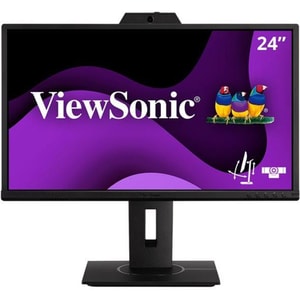
Screen size: 23.8 inch • Resolution: 1920 x 1080 • Refresh Rate: 60 Hz
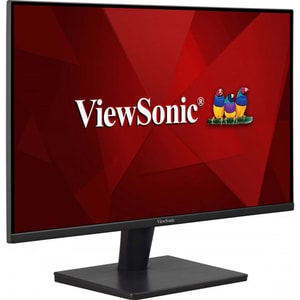
Screen size: 27 inch • Resolution: 1920 x 1080 • Refresh Rate: 75 Hz
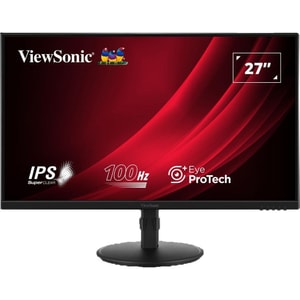
Screen size: 27 inch • Resolution: 1920 x 1080 • Refresh Rate: 100 Hz
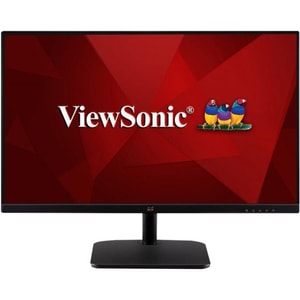
Screen size: 23.8 inch • Resolution: 1920 x 1080 • Refresh Rate: 75 Hz
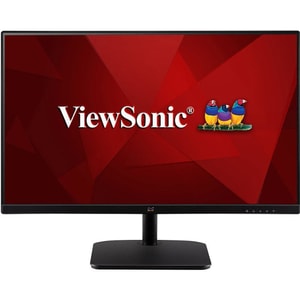
Screen size: 23.8 inch • Resolution: 1920 x 1080 • Refresh Rate: 75 Hz
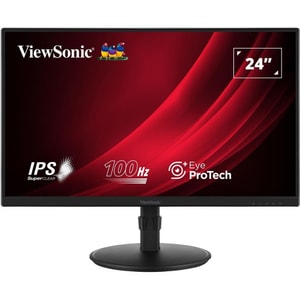
Screen size: 24 inch • Resolution: 1920 x 1080 • Refresh Rate: 100 Hz
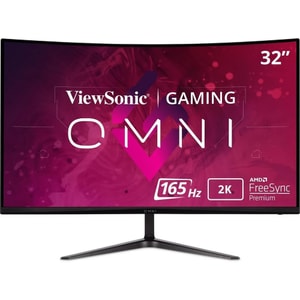
Screen size: 31.5 inch • Resolution: 2560 x 1440 • Refresh Rate: 165 Hz
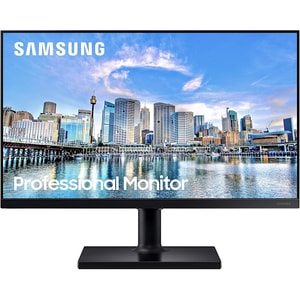
Screen size: 22 inch • Resolution: 1920 x 1080 • Refresh Rate: 75 Hz
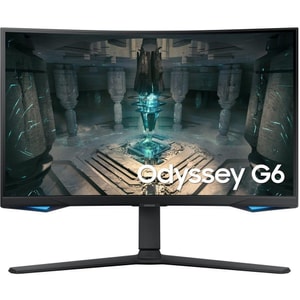
Screen size: 27 inch • Resolution: 2560 x 1440 • Refresh Rate: 240 Hz
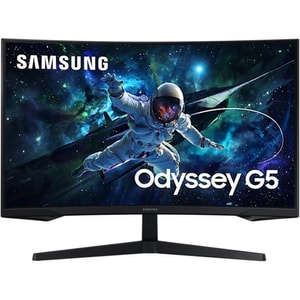
Screen size: 32 inch • Resolution: 2560 x 1440 • Refresh Rate: 165 Hz
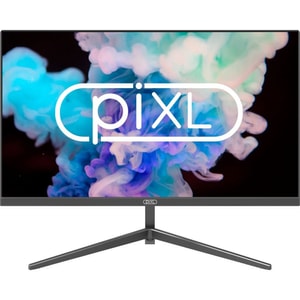
Screen size: 21.5 inch • Resolution: 1920 x 1080 • Refresh Rate: 75 Hz
Computer monitors: the upgrade you notice every single day
A good monitor changes how your whole desk feels. Text looks cleaner, scrolling feels smoother, and suddenly you have room to work without juggling windows like a street performer. The trick is choosing a screen that fits what you do most, rather than paying extra for a feature you will never use. Read More...
If you are browsing computer monitors, start with the basics that affect comfort and clarity: size, resolution, refresh behaviour, panel type, and how you will connect your kit. Get those right and everything else becomes a nice-to-have, not a headache.
Start with how you use it: work, play, or a bit of both
Home office and study
If your monitor is for emails, spreadsheets, and lots of reading, you want it easy on the eyes and easy on the neck. Prioritise sharp text, a stand that adjusts properly, and a finish that does not turn your desk lamp into a reflection. A 24 inch monitor or 27 inch monitor is a comfortable range for most desks, and you can always add a second screen later if you need more space.
If you are building a fixed setup with a tower or compact desktop, it can help to think of the screen as part of the whole system. A quick browse through computers can clarify whether you are pairing the monitor with something powerful, something quiet and efficient, or something that lives under the stairs and just gets on with it.
Gaming and fast response
For a gaming monitor, the feel matters as much as the picture. Smooth motion, low latency, and variable refresh can make games feel more responsive, especially in fast shooters or racing. Many people land on a 27 inch gaming monitor because it balances immersion with desk-friendly size, but the right choice depends on how close you sit and what you like to play.
Console buyers: if you are shopping for PS5 or Xbox Series X and you want 4K at 120Hz, look closely at the monitor’s HDMI capability and supported modes. HDMI 2.1 support is commonly associated with 4K 120Hz on consoles, but it is still worth confirming what the specific monitor accepts over HDMI, rather than assuming it will “just work”.
Creative work and colour confidence
For photo, video, design, and anything where colour matters, consistency is the priority. You want a panel that holds its colour across the screen, viewing angles that do not shift the image as you move, and enough resolution to see fine detail without squinting. If you edit for long stretches, comfort and clarity often beat extreme refresh rates.
The four specs that decide whether you love it: size, resolution, refresh, panel
Size and resolution: common pairings that feel balanced
Resolution is about detail, but it is also about usability. A screen can be technically sharp and still feel awkward if menus and text end up too small.
These pairings are popular because they tend to feel balanced:
- 24 inches with 1080p for everyday work and value.
- 27 inches with 1440p monitor resolution for a strong all-rounder feel.
- 32 inches with 4K monitor detail if you want lots of space and crisp text.
- 34 inches ultrawide as a “two windows side by side” workhorse, often at 1440p ultrawide resolutions.
A simple comfort check is pixel density in practice. If you go 4K on a smaller screen, you may prefer using display scaling so text stays comfortable. There is no shame in that. You are buying a monitor to feel better at your desk, not to win a spec sheet contest.
If you want a shortcut into the most common desk size, the 27 inch monitors set page is a useful place to start because it groups a lot of the mainstream options together.
Refresh rate and variable refresh: when “smooth” is the point
Refresh rate is how often the screen updates each second. For general work, 60Hz is still common and can be fine. For gaming, higher refresh is where you start to feel the difference, particularly at 120Hz, 144Hz, 165Hz, and beyond. A 144Hz monitor is a frequent sweet spot for people who want a smooth feel without chasing extreme specs.
Variable refresh is the other half of the story. You will see it marketed as AMD FreeSync or NVIDIA G-SYNC Compatible on many models. The practical benefit is fewer visible tears and less judder when frame rates fluctuate. If you are choosing between two similar screens, variable refresh support can be the feature that makes the experience feel more polished.
If you are unsure whether your system can take advantage of higher refresh, do a quick reality check on your graphics cards and what they can comfortably drive at your target resolution.
Panel type: what you actually notice in real life
Panel types sound technical, but the differences are straightforward once you connect them to how you use the screen.
- IPS panels are popular for everyday work and creative tasks because colours tend to look consistent and viewing angles are forgiving. If you sit slightly off-centre or share the screen, IPS is often the safe choice.
- VA panels usually offer stronger contrast, which can look great for films and darker scenes, but motion handling varies by model. Some VA screens feel brilliant, others can show smearing in darker transitions.
- OLED monitors can deliver deep blacks and very fast pixel response, which is why they are getting attention in premium gaming and creative setups. They can be expensive, and if you leave static elements on-screen for very long periods, it is worth understanding the manufacturer’s care features and warranty approach.
Brightness and HDR: useful, but only when it matches your room
HDR is often advertised, but results vary. In a bright room with daylight and overhead lighting, higher brightness and decent glare handling are what you notice most. In a dimmer space, contrast and black levels can matter more. The practical advice is simple: do not buy a monitor on “HDR” alone. Treat it as a bonus after you have locked in size, resolution, and refresh behaviour.
Ports and compatibility: HDMI, DisplayPort, and USB-C monitors
Ports are where people get caught out, especially when swapping between a desktop, a games console, and a laptop.
- HDMI is common and convenient. For modern console features, the exact HDMI support on the monitor matters, and the supported modes matter even more.
- DisplayPort is widely used for PCs and high refresh setups.
- A USB-C monitor can be brilliant for a tidy desk because one cable can carry video, data for a USB hub, and sometimes power for charging.
Here is the key check: not all USB-C ports carry video. If you want a single-cable setup from a laptop, look for wording that confirms DisplayPort over USB-C (DP Alt Mode), and confirm whether the monitor can charge your laptop and at what wattage. That one minute of checking saves you a drawer full of adapters and the sinking feeling when the screen stays black.
For hybrid work, it is also worth spotting the features that reduce faff. Some monitors include a USB hub, picture-by-picture, or a built-in KVM switch so one keyboard and mouse can control two devices. If you switch between a work laptop and a home PC, those features can feel like a small luxury that you end up using every day.
If your monitor choice is mainly driven by connecting a portable machine, it is worth quickly scanning laptops so you know what ports and charging standards are common on the models you are considering.
Comfort checks that matter after day three
A monitor can be technically impressive and still uncomfortable if it does not sit at the right height. Look for:
- Height adjustment and tilt so you can keep the top of the screen around eye level.
- Pivot if you read or code and like portrait mode.
- VESA mounting if you plan to use a monitor arm.
Ultrawide screens deserve one extra thought: desk depth. If you sit too close, you can end up turning your head more than you want. Curved models can feel more natural at typical desk distances, but the best approach is still simple: pick the size that fits how far back you can sit.
If you are building a desk you can sit at all day, the little things matter. A good mouse, a keyboard you enjoy using, and decent audio can make the setup feel finished. Computer peripherals are the simplest way to improve comfort without changing your whole system.
Getting a good deal without buying the wrong variant
Monitors are famous for model code lookalikes. Two listings can say “27 inch 1440p” and still differ on panel type, stand adjustability, USB hub features, and port layout. When you see a deal that looks too good, take a breath and check:
- The exact model code, not just the brand family name.
- Inputs you actually need, including USB-C video support if relevant.
- Stand adjustment and whether VESA mounting is supported.
- What cables are included in the box.
- Warranty terms and the retailer’s returns policy.
Trust note on how to compare: we recommend checking the full model code and the manufacturer specification for that exact variant, because small suffixes can mean different panels, ports, or bundled features.
That is the people-first approach that pays off: buy what fits your routine, confirm compatibility, then let price decide between the final two.
FAQs
Is 1440p or 4K better for a 27 inch monitor?
1440p is a popular balance for mixed work and gaming at 27 inches. 4K can look very crisp, but you may want to use scaling so text stays comfortable. The best choice is the one you will enjoy looking at for hours.
Do I need a high refresh monitor for everyday work?
Not necessarily, but some people love the smoother feel for scrolling and window movement. If you mostly do office tasks, prioritise clarity and ergonomics first, then treat higher refresh as a nice bonus.
What should I check for a USB-C single cable setup?
Confirm the monitor supports DisplayPort over USB-C for video, and confirm whether it also provides power delivery for charging. If either is missing, you may still need separate cables.
Is an ultrawide monitor good for productivity?
It can be, especially if you like two windows side by side without a bezel in the middle. Just make sure your desk has the depth to sit far enough back, and check the resolution so text stays sharp at your normal viewing distance.