
NVMe vs SATA SSD vs hard drive: which one will make your computer feel faster?
 27/01/2026
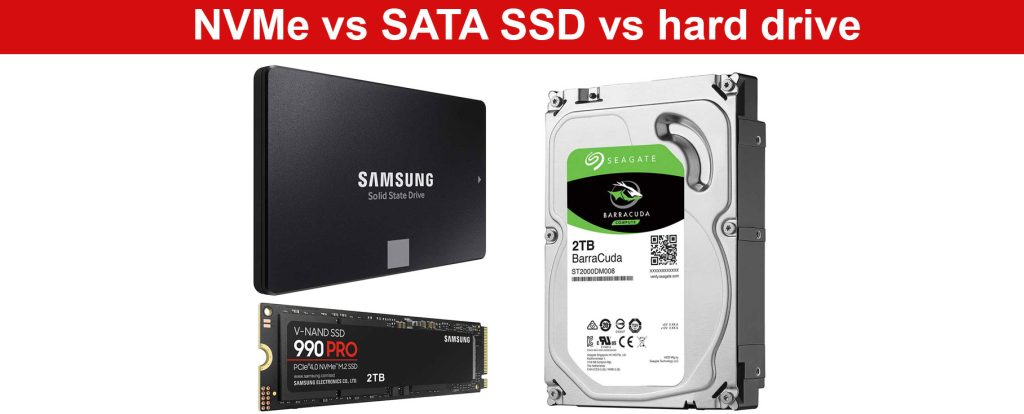
If your laptop takes ages to boot, a game install crawls, or your photo library keeps optimising for far too long, storage is often the quiet culprit. The tricky part is that “SSD” is not one thing. Two drives with the same capacity can feel very different depending on the connection type, the controller design, and how your device actually uses data.
Quick takeaway (if you only read one section):
- NVMe (M.2) SSD: best all-round speed and responsiveness on modern laptops and desktops.
- SATA SSD: the most cost-effective upgrade for older machines that use 2.5-inch drives.
- Hard drive: best value for large backups and archives, not for speed.
This guide is written for practical decisions: speeding up an older laptop, building a responsive desktop, choosing an external drive that does not get choked by a slow port, and picking memory cards that keep up with video. It is not a benchmark brag sheet. It is a way to buy the right storage once, then forget about it. If you want to explore the wider category first, start with Computer Storage.
Start with the job: decide what “better storage” means for you
Most buying mistakes happen when people shop by headline speed rather than by the job the drive will do. Before you look at brands, pick the closest match:
- Everyday speed: faster boot, faster app launches, fewer pauses when multitasking.
- Gaming: quicker installs, faster level loads, and smoother streaming of large game assets.
- Creative work: big, sustained reads and writes for video, RAW photos, and project files.
- Backup and archiving: lots of space for the lowest cost, accessed occasionally.
A calm rule of thumb helps: keep anything you open often on an SSD, and keep “just in case” files on the cheapest reliable storage you can tolerate. If you are searching for something like “best SSD for an older laptop upgrade” or “best 2TB NVMe SSD for gaming”, you are already thinking the right way: match the drive to the job.
NVMe SSD vs SATA SSD vs hard drive: what changes in day to day use
All three can store files, but they behave differently when your system is doing lots of small tasks at once. That is why one upgrade can feel like a new computer, while another barely moves the needle.
NVMe M.2 SSDs: the best overall responsiveness when your device supports them
NVMe drives use the PCIe connection, which is why they tend to feel sharp in everyday work: opening apps, launching games, paging through large folders, installing updates, and juggling background tasks. If you are upgrading a modern laptop or desktop with an M.2 slot, an NVMe drive is usually the cleanest path to “everything feels quicker”.
Practical buying notes:
- Check the M.2 size your device supports (many consumer machines take M.2 2280).
- For most people, a good PCIe Gen 4 NVMe drive is a strong sweet spot for value and compatibility.
- If your workflow includes long file writes (video exports, big transfers), prioritise consistent performance over peak numbers.
If you are ready to browse options, hard drives and SSDs is the most relevant starting point.
SATA SSDs: the best value upgrade for older laptops and desktops
If your machine has a 2.5-inch bay and no NVMe slot, a SATA SSD is still a huge leap from a spinning hard drive. Boot times drop, apps open faster, and the system feels less “stuck” during updates. For general productivity, web work, and casual gaming, SATA SSDs remain one of the most noticeable upgrades per pound.
Practical buying notes:
- Watch the physical thickness if you are replacing a laptop drive.
- If you are moving your operating system, decide early whether you will clone the old drive or reinstall clean.
- Leave some free space: SSDs can slow down when nearly full, especially during large writes.
Hard drives: unbeatable cost per terabyte for backups and big libraries
Hard drives remain the budget champion for capacity. They are ideal for backups, long-term archives, and media libraries you do not need to load instantly. The trade off is speed, plus they are less happy about knocks and drops.
Practical buying notes:
- If you want one drive to “just store everything”, consider a smaller SSD for the system plus a hard drive for bulk storage.
- For external backups, look for sensible warranty terms and proven reliability, not only peak transfer speed.
Spec sheet decoded: the details that affect real performance
Spec pages are full of numbers, but only a few consistently change how a drive feels. Focus on what affects your typical tasks, and ignore the rest.
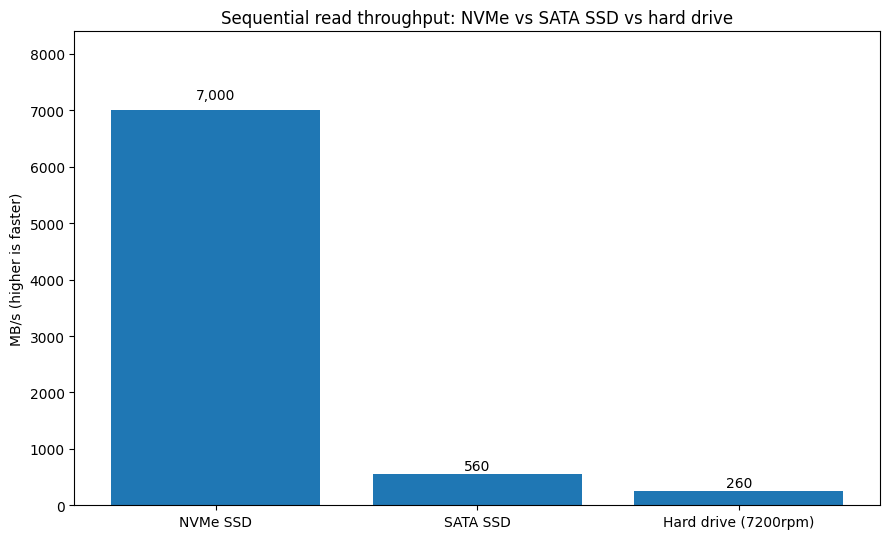
PCIe Gen 3 vs Gen 4 vs Gen 5: choose for compatibility and sustained speed
PCIe generation matters most when your device can use it. A Gen 4 drive in a Gen 3 slot will work, but it will not reach Gen 4 speeds. For many everyday tasks, you will notice the jump from hard drive to SSD far more than Gen 3 to Gen 4.
Gen 5 can make sense for specialised workloads, but it also runs hotter and is more likely to throttle without good cooling. If you do not have a clear reason, buy the drive that is known for stable sustained performance, not the one with the flashiest headline.
TLC vs QLC: why some “cheap per TB” drives slow down during big writes
TLC and QLC are different ways of storing data in flash memory. Many QLC drives deliver excellent value at higher capacities, but they can slow sharply during long writes once the fast cache area fills. If you regularly move huge video files, install very large games back to back, or run heavy creative workflows, a TLC drive often feels more consistent.
If your day is mostly reading data (launching games, opening apps, browsing), a well reviewed QLC model can still be a sensible buy. The point is not to fear QLC. It is to avoid surprises if your workflow is write heavy.
DRAM cache and HMB: the “it felt fast in reviews” factor
Some SSDs include DRAM, while others use Host Memory Buffer (HMB) to borrow a little system memory. This is rarely visible in light use, but it can affect consistency when the drive is busy or close to full. If you want fewer slowdowns during large copies, look for independent reviews that include sustained write tests and “nearly full” behaviour, not only peak read speeds.
Endurance and warranty: a practical signal of expected wear
Endurance ratings (often shown as TBW) and warranty length are not perfect, but they are useful signals. Higher endurance matters most if you write lots of data daily: video editing scratch disks, virtual machines, large game capture files, or regular big transfers.
How much capacity do you actually need: a simple way to avoid regret
Capacity planning is where most people underbuy. Storage fills in slow motion: a few big game installs, a photo library, some phone backups, then suddenly you are juggling space.
A practical approach:
- 1TB is a comfortable baseline for a single-machine everyday setup.
- 2TB is often the “set and forget” choice for larger game libraries and creative projects.
- 4TB and above makes sense for creators, large media collections, and anyone consolidating multiple devices.
If you find yourself searching “is 1TB enough for gaming” or “best 4TB external hard drive for backups”, treat that as a signal that you would rather buy breathing room than micromanage space later.
External SSDs and enclosures: the port can be the bottleneck
External drives are easy to buy and easy to misunderstand. The drive can be fast, but the connection can cap it, and heat can pull speeds down during long transfers.
Cables and ports: the slowest link decides the speed
In real use, the speed you get is limited by the slowest part: your device’s port, the cable, and the enclosure. That is why someone can buy a “USB-C external SSD” and still see disappointing transfers if the port is effectively running at older speeds.
Practical buying notes:
- If your device only supports a slower USB mode, a faster drive will still work, but you will not see the full benefit.
- A good quality cable matters more than people expect, especially for sustained transfers.
Heat and throttling: why some small drives slow down mid transfer
Fast SSDs generate heat. During long transfers, some compact external drives and enclosures slow down to protect themselves. If you often copy large folders, consistency matters. A better cooled enclosure can outperform a slimmer one in real transfers, even when their peak numbers look similar.
Console upgrades and memory cards: avoid the common compatibility traps
This is where “looks right” purchases can go wrong. Consoles and handheld devices can be particular about what they accept, and storage upgrades are not always interchangeable.
PS5 internal M.2 upgrades: treat the platform requirements as the baseline
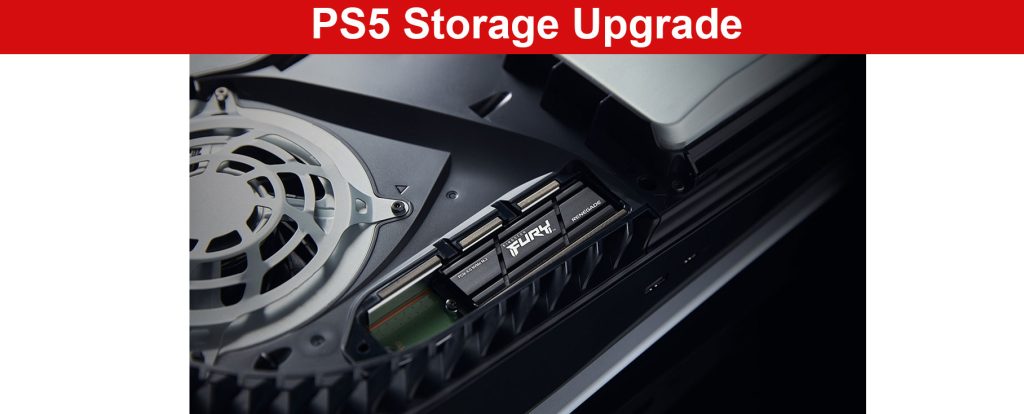
For PS5 storage expansion, start with the official requirements, then choose for capacity and cooling rather than chasing the biggest benchmark number. The best outcome is simple: stable performance during play, installs, and downloads, without the drive cooking itself mid-session.
If you are shopping for the rest of your setup at the same time, gaming consoles can help you sanity check what you are upgrading around.
microSD for handhelds, cameras, and drones: prioritise sustained write speed
For handhelds and cameras, sustained write speed is often the difference between smooth recording and dropped frames. If you record high-resolution video, look for cards that are designed for sustained performance, not only for headline read speed. If you mainly store downloads and save files, you can often focus on capacity and broad compatibility.
For a wider browse, memory cards and USB flash drives is the natural place to explore formats and capacities.
Card readers and file transfers: the forgotten upgrade that saves time
A good reader can be the difference between “that was quick” and watching a progress bar crawl. If your computer does not have a built-in slot, or you are moving lots of photos and clips regularly, the right reader can reduce friction and failed transfers.
Key checks:
- Match the connector to your device (USB-A or USB-C).
- If you use faster cards, make sure the reader supports that standard.
- For mixed devices, a multi-format reader can be more practical than several adapters.
If you want to browse options, memory card readers covers compact travel readers and faster desk-friendly models.
A buyer’s checklist that prevents expensive mistakes
Use these questions as a final sense check:
1) What is the main job: everyday speed, gaming, creative work, or backup?
2) What format fits your device: M.2 NVMe, 2.5-inch SATA, or external?
3) What connection speed will you actually use (slot, port, and cable)?
4) Do you need heat management: a heatsink or a better cooled enclosure?
5) What capacity will still feel comfortable a year from now?
If you can answer those in plain language, you are unlikely to waste money on specs your device cannot use. Storage pricing also moves around more than most people expect, so it can be worth checking what is available across the Computer Storage category when you are ready to choose.